> For the complete documentation index, see [llms.txt](https://api-portal.novapost.com/llms.txt). Markdown versions of documentation pages are available by appending `.md` to page URLs; this page is available as [Markdown](https://api-portal.novapost.com/gotovi-integraciyi/popular-integration/base-baselinker.md).
# Base (Baselinker)
Arrange delivery to your store's customers directly through the order management section in Base (Baselinker).
**Create shipments for your store customers directly through the order management section in BaseLinker.**
* Allow customers to select a Nova Post branch or address delivery during checkout.
* Automatically generate shipping and export documents.
* Process orders with cash on delivery.
* Arrange delivery of your orders to customers within your country, across Europe, and to Ukraine directly from the Shopify admin panel.
* Access shipment tracking and notify customers about delivery status updates.
#### Integration steps
1. Sign service agreements with Nova Post for logistics services.\
If you sell internationally, two agreements are required:
* one for domestic delivery within your country
* one for international delivery to other countries
To sign an agreement, contact the sales department in your country.
2. Sign an additional agreement for the **Cash on Delivery** service.\*
{% hint style="info" %}
\*Тільки для продавців з Польщі, Чехії, Німеччини
{% endhint %}
3. Register in **My Nova Post** in your country using the contact details specified in the service agreement for the authorized representative.
4. Obtain a API key from Nova Post. **How to create an API key for a European client**
To configure the module, you need:
* an active service contract with Nova Post
* an API key issued to an authorized representative specified in the contract
{% hint style="warning" %}
To configure the module, you need an active service contract with Nova Post and an API key issued to an authorized representative specified in the contract.
{% endhint %}
### How to Configure the Nova Post Module on Base (Baselinker)
1. Locate the Nova Post module on Base (Baselinker). Go to the Integrations menu → Select Add Integration.
2. Navigate to the "Courier Services" Section: In the search bar, type Nova Post → Click on the Nova Post module icon.
3. Complete the Settings: Fill in all the required fields in the settings section and click Save.
#### Field descriptions for configuring the Nova Post module in Base (Baselinker) Basic fields: this information is used later when placing an order, so you don't need to enter it every time.
| Field Name | Description |
| ------------------------- | --------------------------------------------------------------------------------------------------------------------------------------------------------------------------------------------------------------------------------------------------------------------------------------------------------------------------- |
| Account name | Display name for the account in the Base (Baselinker) panel. |
| API key |
|
| Sender - company name | Name of the sender’s company |
| Sender - phone number | Sender's phone number |
| Sender - e-mail | Sender's email address |
| Sender - country | Country from where parcels are shipped (select from a list) |
| Sender - street | Sender's street address |
| Sender - house number | Sender's house number |
| Sender - apartment number | Sender's apartment number |
| Sender - postal code | Sender's postal code |
| Sender - city | Sender's city |
| Sender - name | First name of the sender |
| Sender - surname | Last name of the sender |
| Client number |
Contract ID with Nova Post
API Nova Post parameter: payerContractNumber
|
Cash-on-Delivery (COD) Fields
| Account number for COD (IBAN) | IBAN listed in the contract for COD payments |
| ----------------------------- | ----------------------------------------------------- |
| Bank account owner | Tax identification number of the sender's companyника |
Weight Settings
| Default Package Weight Settings | |
| -------------------------------------------------------------------------------- | ---------------------------------------------------------------------------------------------------------------------------------------------------------------------- |
| How to calculate the fixed weight of a cardboard |
Percentage value adds a percentage of the parcel weight for packaging.
Fixed value adds a defined fixed weight for packaging to all parcels.
|
| If shipping small parcels, set this to 0 to avoid inflating the parcel's weight. | |
| How to calculate the fixed weight of a cardboard | fixed value |
| Value of the fixed weight of the cardboard | 0 |
### How to arrange parcel delivery using the Nova Post module in Base (Baselinker)
#### Delivery to an Address
1. Complete all fields in the Delivery Address section as shown in the example
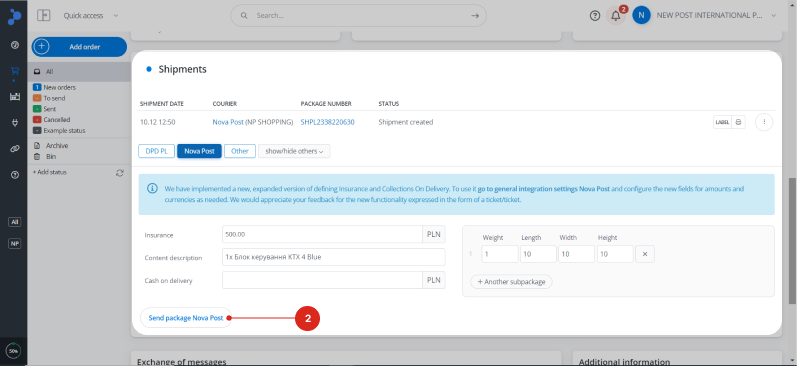
2. Enter shipment details in the Shipments Section and click Send package Nova Post
How to correctly fill in the Address field
* Do NOT duplicate the following fields in the Address field: Postal code, City, State, Country.
* Order of writing:
* Street name → House number → Apartment number (if applicable)
* House number → Street name → Apartment number (if applicable)
* The Pickup at point block must remain empty.
* For Delivery to Ukraine:
* All words should be written in Latin characters without translation. For example: Budynok 10, Kvartyra 25, vul. Shevchenka, Kyi
* English abbreviations are allowed.
| Full name | Abbreviations |
| --------- | ------------- |
| Street | St |
| Avenue | Ave |
| Boulevard | Blvd |
| Road | Rd |
| Lane | Ln |
| Apartment | Apt |
{% hint style="warning" %}
 Strictly follow the rules for structured address entry to ensure delivery accuracy, minimize the risk of errors, and avoid delays in delivery.
The Nova Post API expects to receive a structured recipient address. A structured address is a set of data formatted in a specific way and sequence.
During integration, Base (Baselinker) transmits the recipient's address as a single line. On Nova Post's side, this line is processed by an automated parsing algorithm that separates it into individual elements to create the shipment.
If the address is entered incorrectly, the algorithm will be unable to process the shipment automatically. In such cases, order processing will be delayed due to the need for manual intervention by staff or there may be a risk of incorrect delivery to the wrong address.
{% endhint %}
#### Delivery to a Branch or Parcel Locker
For this delivery type, a specific branch or parcel locker must be specified. Baselinker does not integrate with the Nova Post branch directory, so customers cannot select a branch or locker during the order process. However, the Nova Post module can transmit these details through the Pick up at point section.
Ways to provide Branch or Parcel Locker data for delivery:
* Integrate Nova Post API with your online store or CRM. Enable users to select the desired branch or locker for delivery during the ordering process. The selected data will be automatically transferred to Baselinker. [More details on the method](https://api-portal-stage.novapost.com/en/api-methods/branch-directory)[ ](https://api-portal-stage.novapost.com/en/api-methods/branch-directory)
* Upload the current Branch and Locker directory to your order management platform. Customers can select the desired branch or locker for delivery. However, this directory will not update automatically. To display up-to-date delivery locations on the website, you will need to update the directory periodically. [More details](https://api-portal-stage.novapost.com/en/api-methods/branch-directory)[ ](https://api-portal-stage.novapost.com/en/api-methods/branch-directory)
* Manually on Base (Baselinker). Enter the delivery location details in the Pick up at point section based on the customer-provided Delivery address data:
1. **Navigate to the branch map: select the country and delivery city.** Choose the desired delivery location: by branch or locker number, if provided by the customer. Enter the address provided in the Delivery address and select the nearest branch or locker.
2. **Access the branch or locker details:** Click Copy to copy the information.
3. **Return to the order card on Base (Baselinker):** Open the Pick up at point section, paste the copied information into the ID field, and save the changes.
Complete the Shipment Details. Fill in the required shipment details in the Shipments section and click Send Package Nova Post.
#### How to fill in parcel details
1. 1Scroll down to the Shipments section in the order card and click Nova Post to open the parcel creation form.
2. 2Complete all mandatory fields in the form. Once finished, click Send package Nova Post. [Detailed Field Descriptions](https://api-portal-stage.novapost.com/en/integrations/other-platforms/base#parcel-fields) 
An example of filling in parcel data:
### Description of the fields in the parcel creation form
| Field Name | What to Enter |
| ----------------------------- | ------------------------------------------------------------------------------------------------------------------------------------------------------------------------------------------------------------------------------------------------------------------------- |
| Insurance | Declared value of the parcel |
| Content description |
Description of the shipment\*
\*To ensure the automatic completion of parcel descriptions, select one of the settings in the Default settings of shipment and printouts section: Product list (Quantity, Name) or Product list (Quantity, SKU, Name, Price)
|
| Cash on delivery |
COD amount\*. If the field is left blank, the parcel will be delivered without COD.
\*To process COD, the Account number for COD (IBAN) and Bank account owner fields must be completed in the module settings.
|
| Weight, Length, Width, Height | Parcel dimensions: weight, length, width, height |
### How to print a Label for a parcel from Base (Baselinker)
1. Label for a single parcel in each order
2. Print labeling for multiple parcels or a single parcel
### How to track parcels in Baselinker
**Package number –** this is the express waybill number. Clicking on it allows you to track the parcel.
---
# Agent Instructions
This documentation is published with GitBook. GitBook is the documentation platform designed so that both humans and AI agents can read, navigate, and reason over technical content effectively. Learn more at gitbook.com.
## Querying This Documentation
If you need additional information that is not directly available in this page, you can query the documentation by asking a question.
Perform an HTTP GET request on the following URL with the `ask` and `goal` query parameters:
```
GET https://api-portal.novapost.com/gotovi-integraciyi/popular-integration/base-baselinker.md?ask=&goal=
```
`ask` is the immediate question: it should be specific, self-contained, and written in natural language.
`goal` is what the user is ultimately trying to achieve, the reason they need the answer. Sharing it helps GitBook give you a better, more relevant answer. A goal is most helpful when it describes the outcome the user wants rather than restating the question. For example, with `ask=how do I create an API token`, a goal like `automate deployments from our CI pipeline` lets GitBook tailor the answer to that use case.
The response will contain a direct answer to the question and relevant excerpts and sources from the documentation.
Use this mechanism when the answer is not explicitly present in the current page, you need clarification or additional context, or you want to retrieve related documentation sections.